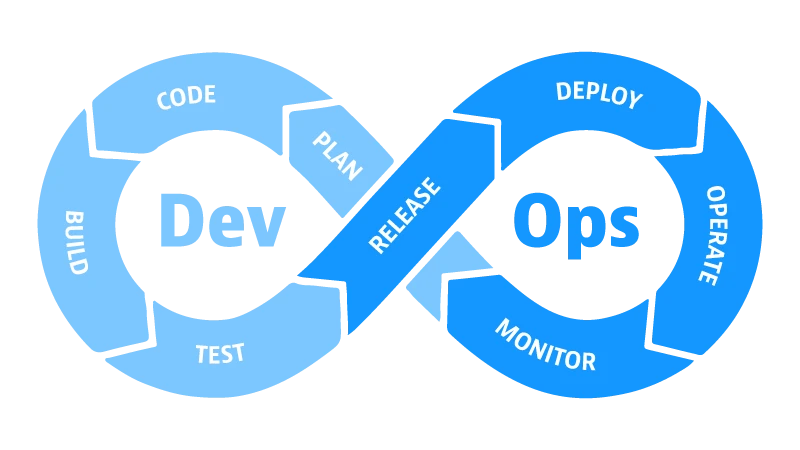
การตั้งค่า Alert เพื่อแจ้งเตือนเมื่อ Server มีปัญหาถือเป็นสิ่งสำคัญในการจัดการระบบ IT อย่างมีประสิทธิภาพ แนวคิด “4 Golden Signals” ชี้ให้เห็นว่า ควรติดตามสัญญาณสำคัญ 4 ประการ ได้แก่ Latency (ความล่าช้า), Traffic (ปริมาณการใช้งาน), Errors (ข้อผิดพลาด) และ Saturation (ความอิ่มตัว) โดยการตั้งค่า Alert ผ่าน LINE หรือ Slack สามารถช่วยให้ทีม Operations ได้รับการแจ้งเตือนแบบ Real-time เมื่อเกิดปัญหากับระบบ ทำให้สามารถตอบสนองได้อย่างรวดเร็ว และลดเวลาในการแก้ไขปัญหา (Mean Time To Resolution)
เลือก Notification Channel ที่เหมาะสม
ในการตั้งค่า Alert สำหรับ Server Monitoring นั้น มีหลายวิธีในการรับการแจ้งเตือน เช่น LINE Notify, Slack, Email และอื่นๆ แต่ละช่องทางมีข้อดีและข้อเสีย ดังนี้
| Channel | ข้อดี | ข้อเสีย | เหมาะสำหรับ |
| LINE Notify | ใช้งานง่าย สามารถส่งข้อความได้ทันที ผู้ใช้ส่วนใหญ่มี LINE อยู่แล้ว | ข้อความมี format จำกัด ไม่สามารถโต้ตอบแบบ interactive ได้ | เตือนด่วน เหตุฉุกเฉิน |
| Slack | อินเตอร์เฟสสวย Interactive messages ได้ สามารถแยก Channel ได้ | ต้องมี Slack Workspace ต้องมี Cost สำหรับ Plan ที่เหมาะสม | ทีม DevOps ที่ใช้ Slack อยู่แล้ว |
| เป็นทางการ สามารถเก็บบันทึกได้ ใช้ได้ทั้ง Personal และ Business | อาจไม่เห็นทันที อาจติดใน Spam folder | เอกสาร Notification ที่ต้องเก็บบันทึก | |
| Webhook (Custom) | ความเป็นอิสระสูง สามารถ integrate ได้กับระบบต่างๆ | ต้องมี Server เพื่อรับ Webhook ต้องมีความรู้ทางเทคนิค | Integration ที่ซับซ้อน แบบ Custom |
ตั้งค่า Grafana Contact Points
Grafana เป็น Tool ที่นิยมใช้ในการ Monitor Server และตั้งค่า Alert ได้ดี ในส่วนนี้เราจะอธิบายวิธีการตั้งค่า Contact Points สำหรับ LINE Notify และ Slack
เพิ่ม LINE Notify
ขั้นตอนแรก ต้องไปหา LINE Notify Token โดยเข้าไปที่ https://notify-bot.line.me/my/ แล้วคลิก “Generate token” และเลือก Group หรือ Personal Chat ที่ต้องการรับการแจ้งเตือน
- ชื่อ Contact Point: LINE Alerts
- Integration: เลือก “Webhook”
- URL:
https://notify-api.line.me/api/notify - HTTP Header:
Authorization: Bearer YOUR_LINE_NOTIFY_TOKEN - HTTP Method: POST
{
  "message": "{{ .GroupLabels.alertname }}: {{ .Status }}\n{{ .CommonAnnotations.description }}\nInstance: {{ .GroupLabels.instance }}"
}
เพิ่ม Slack Webhook
สำหรับการตั้งค่า Slack ต้องสร้าง Slack App ก่อน โดยเข้าไปที่ https://api.slack.com/apps แล้วกด “Create New App” จากนั้น:
- ใน App Dashboard ให้กด “Incoming Webhooks” และเปิด Active
- กดปุ่ม “Add New Webhook to Workspace” และเลือก Channel ที่ต้องการ
- Copy Webhook URL ที่ได้มา ใส่ใน Grafana Contact Point (Integration: Slack)
ตั้งค่า Alert Rules ใน Grafana
หลังจากตั้งค่า Contact Points แล้ว ขั้นตอนต่อไปคือการสร้าง Alert Rules เพื่อให้ระบบตรวจจับปัญหาได้โดยอัตโนมัติ
Alert CPU Usage > 80%
- Alert Name: CPU Usage High
- Data Source: Prometheus
- Query Expression:
100 - (avg(rate(node_cpu_seconds_total{mode="idle"}[5m])) * 100) - Condition: is above 80
- For: 5m (รอ 5 นาที ก่อนส่ง Alert)
Alert RAM Usage > 85%
- Alert Name: Memory Usage High
- Query Expression:
(1 - (node_memory_MemAvailable_bytes / node_memory_MemTotal_bytes)) * 100 - Condition: is above 85
- For: 5m
Alert Disk Usage > 90%
- Alert Name: Disk Usage High
- Query Expression:
(1 - (node_filesystem_avail_bytes{mountpoint="/"} / node_filesystem_size_bytes{mountpoint="/"})) * 100 - Condition: is above 90
- For: 10m
Alert Service Down
- Alert Name: Target Down
- Query Expression:
up == 0 - Condition: is equal to 0
- For: 1m (ส่ง Alert เร็ว เนื่องจากเป็น Critical Issue)
ตั้งค่า Alertmanager ใน Prometheus
นอกจาก Grafana แล้ว สามารถใช้ Prometheus Alertmanager เพื่อตั้งค่า Alert ได้ โดยแก้ไขไฟล์ alertmanager.yml
global:
  resolve_timeout: 5m

route:
  receiver: 'default'
  group_by: ['alertname', 'cluster', 'service']
  group_wait: 10s
  group_interval: 10s
  repeat_interval: 12h
  routes:
    - match:
        severity: critical
      receiver: 'line-critical'
      group_wait: 5s
    - match:
        severity: warning
      receiver: 'slack-warning'
      group_wait: 30s

receivers:
  - name: 'default'
    slack_configs:
      - api_url: 'YOUR_SLACK_WEBHOOK_URL'
        channel: '#alerts'
        title: 'Alert: {{ .GroupLabels.alertname }}'
        text: '{{ .CommonAnnotations.description }}'

  - name: 'line-critical'
    webhook_configs:
      - url: 'https://notify-api.line.me/api/notify'
        send_resolved: true
        http_config:
          bearer_token: 'YOUR_LINE_NOTIFY_TOKEN'

  - name: 'slack-warning'
    slack_configs:
      - api_url: 'YOUR_SLACK_WEBHOOK_URL'
        channel: '#warnings'
        title: 'Warning: {{ .GroupLabels.alertname }}'
        text: '{{ .CommonAnnotations.description }}'
ในไฟล์ prometheus.yml ให้เพิ่มส่วน Alerting Configuration
global:
  scrape_interval: 15s
  evaluation_interval: 15s

alerting:
  alertmanagers:
    - static_configs:
        - targets: ['localhost:9093']

rule_files:
  - 'alert_rules.yml'

scrape_configs:
  - job_name: 'prometheus'
    static_configs:
      - targets: ['localhost:9090']
  - job_name: 'node'
    static_configs:
      - targets: ['localhost:9100']
Alert Routing และ Silencing
การ Routing ใน Alertmanager จะช่วยให้ Alert ต่างๆ ถูกส่งไปยัง Receiver ที่เหมาะสม ตัวอย่างเช่น Alert ที่มี Severity เป็น “critical” ส่งไป LINE Notify ทันที ส่วน Alert ที่มี Severity เป็น “warning” ส่งไป Slack แทน
สำหรับ Silencing ให้เข้าไปที่ Alertmanager UI (localhost:9093) แล้วไปที่ “Silences” และสร้าง Silence Rule ใหม่ โดยระบุ:
- Matcher:
alertname =~ ".*"(ทั้งหมด) หรือalertname = "CPU Usage High"(Alert เฉพาะตัว) - Duration: ระยะเวลาที่ต้องการปิด เช่น 2 hours, 1 day
- Comment: หมายเหตุว่าเป็นการ Silence เพื่อวัตถุประสงค์ใด
Best Practices สำหรับ Alert Management
- หลีกเลี่ยง Alert Fatigue: อย่าตั้ง Alert ให้มากเกินไป เนื่องจากจะทำให้ Alert เสียความสำคัญ ให้ตั้งเฉพาะสิ่งที่สำคัญและต้องมีการตอบสนอง
- ตั้ง Threshold ให้มีความหมาย: ค่า Threshold ต้องขึ้นอยู่กับคุณสมบัติของ Server และลักษณะงาน
- ใช้ Alert Routing: แบ่งแยก Alert ให้ไปยังคนต่างๆ ตามความรุนแรงและประเภท
- ทดสอบ Alert อย่างสม่ำเสมอ: ทดสอบให้แน่ใจว่า Alert ทำงานถูกต้อง โดยจงใจสร้างปัญหาเล็กน้อยขึ้นมา
- เก็บบันทึก Alert History: บันทึกรายละเอียด Alert ที่เกิดขึ้น เพื่อสามารถวิเคราะห์แนวโน้มปัญหาและหาวิธีป้องกันในอนาคต
- ตั้ง Escalation Policy: หากเจ้าหน้าที่คนแรกไม่ตอบสนอง ต้องมีขั้นตอนขยายการแจ้งเตือนไปยังผู้บริหาร
ประยุกต์ใช้กับ ผู้ให้บริการโฮสติ้ง Cloud VPS
หากคุณใช้บริการ ผู้ให้บริการโฮสติ้ง Cloud VPS สามารถนำวิธีการตั้งค่า Alert ตามที่บอกไว้ข้างต้นไปใช้ได้เลย เนื่องจาก Cloud VPS ของ ผู้ให้บริการโฮสติ้ง ให้ความเป็นอิสระในการติดตั้งและตั้งค่า Monitoring Tools ต่างๆ ดำเนินการดังต่อไปนี้:
- ติดตั้ง Prometheus และ Alertmanager บนเครื่อง VPS เป็น Central Monitoring Server
- ติดตั้ง Node Exporter บนแต่ละ VPS Instance ที่ต้องการติดตาม
- ตั้งค่า Alert Rules ให้เหมาะสมกับโครงสร้าง Infrastructure ของคุณ
- เชื่อม LINE Notify หรือ Slack เพื่อรับการแจ้งเตือน
สรุป
การตั้งค่า Alert ผ่าน LINE Notify หรือ Slack นั้นเป็นสิ่งจำเป็นสำหรับการจัดการ Server ที่มีประสิทธิภาพ โดยการสร้าง Alert Rule ที่ดี การเลือก Notification Channel ที่เหมาะสม และการปฏิบัติตามหลักการจัดการ Alert ที่ดี จะช่วยให้ทีมของคุณสามารถตอบสนองต่อปัญหา Server ได้อย่างรวดเร็ว ลองนำวิธีการเหล่านี้ไปใช้กับ Cloud VPS ของ ผู้ให้บริการโฮสติ้ง และปรับให้เหมาะสมตามความต้องการเฉพาะของหน่วยงานของคุณ

