Workshop Overview
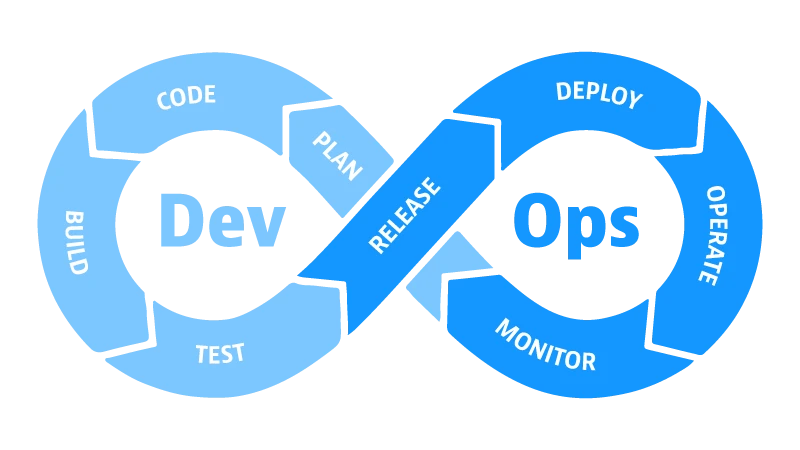
บทความนี้จะสอนวิธีการสร้าง CI/CD Pipeline ที่สมบูรณ์สำหรับการ Deploy Node.js Application บน Cloud VPS โดยใช้ GitHub Actions ในการจัดการ Automated Deployment คุณจะเรียนรู้วิธีการตั้งค่าเซิร์ฟเวอร์ สร้าง Workflow ใน GitHub, และตั้งค่า Nginx Reverse Proxy พร้อมกับ SSL Certificate
สิ่งที่ต้องเตรียม
- Cloud VPS จาก Dot Enterprise (https://de.co.th/cloud-vps) ที่มี Ubuntu 22.04 LTS
- GitHub Account และ Repository สำหรับเก็บ Node.js Application
- Node.js Application แบบเรียบง่าย เช่น Express Server
- SSH Access ไปยัง Cloud VPS
ขั้นตอนที่ 1: เตรียม VPS – ติดตั้ง Node.js, PM2, และ Nginx
เข้าสู่ VPS ผ่าน SSH และติดตั้ง tools ที่จำเป็น:
# อัปเดต System Packages
sudo apt update && sudo apt upgrade -y

# ติดตั้ง Node.js และ npm
curl -fsSL https://deb.nodesource.com/setup_18.x | sudo -E bash -
sudo apt install -y nodejs

# ติดตั้ง PM2
sudo npm install -g pm2

# ติดตั้ง Nginx
sudo apt install -y nginx

# ตั้งค่า Firewall
sudo ufw default deny incoming
sudo ufw default allow outgoing
sudo ufw allow 22/tcp
sudo ufw allow 80/tcp
sudo ufw allow 443/tcp
sudo ufw enable
ขั้นตอนที่ 2: ตั้งค่า SSH Deployment Key
สร้าง SSH Key สำหรับให้ GitHub Actions ใช้ Deploy:
ssh-keygen -t rsa -b 4096 -f ~/.ssh/github_actions -N ""
cat ~/.ssh/github_actions.pub >> ~/.ssh/authorized_keys
cat ~/.ssh/github_actions
คัดลอก Private Key (ทั้งหมด) และจะใช้ใน GitHub Secrets
ขั้นตอนที่ 3: สร้าง GitHub Repository และ Push Code
สร้าง GitHub Repository และ Push Node.js Application code:
mkdir ~/myapp
cd ~/myapp
git init
git add .
git commit -m "Initial commit"
git branch -M main
git remote add origin https://github.com/YOUR_USERNAME/myapp.git
git push -u origin main
ตัวอย่าง package.json:
{
  "name": "myapp",
  "version": "1.0.0",
  "main": "app.js",
  "scripts": {
    "start": "node app.js",
    "test": "echo \"Error: no test specified\" && exit 1"
  },
  "dependencies": {
    "express": "^4.18.2"
  }
}
ขั้นตอนที่ 4: สร้าง GitHub Actions Workflow
สร้างไฟล์ `.github/workflows/deploy.yml` ใน Repository:
name: Deploy Node.js App

on:
  push:
    branches: [main]

jobs:
  test:
    runs-on: ubuntu-latest
    steps:
    - uses: actions/checkout@v3
    - uses: actions/setup-node@v3
      with:
        node-version: '18'
    - run: npm install
    - run: npm test

  deploy:
    needs: test
    runs-on: ubuntu-latest
    steps:
    - uses: actions/checkout@v3

    - name: Deploy to VPS
      uses: appleboy/ssh-action@master
      with:
        host: ${{ secrets.VPS_HOST }}
        username: ${{ secrets.VPS_USER }}
        key: ${{ secrets.VPS_SSH_KEY }}
        script: |
          cd /var/www/myapp
          git pull origin main
          npm install
          pm2 restart myapp || pm2 start app.js --name myapp
          pm2 save
ขั้นตอนที่ 5: ตั้งค่า GitHub Secrets
เข้าไปยัง GitHub Repository Settings > Secrets and variables > Actions และเพิ่ม Secrets 3 รายการ:
- VPS_HOST – IP Address ของ VPS
- VPS_USER – Username สำหรับ SSH (เช่น ubuntu)
- VPS_SSH_KEY – Private SSH Key ที่สร้างในขั้นตอนที่ 2
ขั้นตอนที่ 6: ตั้งค่า Nginx Reverse Proxy
สร้างไฟล์ Nginx config สำหรับ Reverse Proxy ที่ Port 80/443 ไปยัง Node.js Port 3000:
sudo nano /etc/nginx/sites-available/myappเพิ่มเนื้อหา:
server {
    listen 80;
    server_name example.com www.example.com;

    location / {
        proxy_pass http://localhost:3000;
        proxy_http_version 1.1;
        proxy_set_header Upgrade $http_upgrade;
        proxy_set_header Connection "upgrade";
        proxy_set_header Host $host;
        proxy_set_header X-Real-IP $remote_addr;
        proxy_set_header X-Forwarded-For $proxy_add_x_forwarded_for;
        proxy_set_header X-Forwarded-Proto $scheme;
    }
}
เปิดใช้งาน Nginx config:
sudo ln -s /etc/nginx/sites-available/myapp /etc/nginx/sites-enabled/
sudo nginx -t
sudo systemctl restart nginx
ขั้นตอนที่ 7: ติดตั้ง SSL Certificate ด้วย Certbot
ติดตั้ง Certbot และสร้าง SSL Certificate โดยฟรี:
sudo apt install -y certbot python3-certbot-nginx
sudo certbot --nginx -d example.com -d www.example.com
sudo systemctl restart nginx
Certbot จะตั้งค่า HTTPS โดยอัตโนมัติและตั้งค่า Auto Renewal
ขั้นตอนที่ 8: ตั้งค่าโฟลเดอร์สำหรับ Application
สร้างโฟลเดอร์และตั้งค่าสิทธิ์:
sudo mkdir -p /var/www/myapp
sudo chown -R $USER:$USER /var/www/myapp
cd /var/www/myapp
git clone https://github.com/YOUR_USERNAME/myapp.git .
npm install
pm2 start app.js --name myapp
pm2 save
ขั้นตอนที่ 9: ทดสอบ Pipeline
ทำการ Push code ใหม่ไปยัง GitHub main branch และสังเกตการณ์ GitHub Actions:
git add .
git commit -m "Test CI/CD pipeline"
git push origin main
เข้าไปยัง GitHub Repository > Actions เพื่อดู Workflow ทำงาน
Zero-Downtime Deployment ด้วย PM2
ใช้ pm2 reload เพื่อ Restart Application โดยไม่หยุดบริการ:
pm2 reload myappแก้ไขไฟล์ `.github/workflows/deploy.yml` ให้ใช้ reload แทน restart
Rollback Strategy
หากต้อง Rollback ไปยัง Version ก่อนหน้า:
cd /var/www/myapp
git log --oneline
git checkout
npm install
pm2 reload myapp
บทสรุป
Workshop นี้ครอบคลุมการสร้าง CI/CD Pipeline ที่สมบูรณ์สำหรับ Node.js Application บน Cloud VPS รวมถึงการใช้ GitHub Actions สำหรับ Automated Testing และ Deployment การตั้งค่า Nginx Reverse Proxy และการติดตั้ง SSL Certificate เมื่อใช้ Cloud VPS จาก Dot Enterprise (https://de.co.th/cloud-vps) คุณสามารถปรับใช้วิธีการเหล่านี้เพื่อ Deploy Node.js Application ได้อย่างมีประสิทธิภาพและปลอดภัย

