How to Deploy a Vibe-Coded (AI-Built) Website to Plesk Hosting
How to deploy a vibe-coded website to Plesk Hosting — More and more people now build websites with AI tools such as Claude Code, Cursor, Lovable, Bolt, v0 or Replit. This is often called "vibe coding": you describe what you want in plain language and the AI writes the code, so you can have a working site in a few hours. The step where many people get stuck is getting that site onto their own hosting. This article covers three ways to do it on Plesk, from a simple file upload to automatic deployment from GitHub and running a Node.js app.
What is a vibe-coded website and which method should you use
Most AI-generated code is a modern JavaScript project (React, Vite, Next.js, Astro, Express, etc.) that has to be built before it goes live. First find out what kind of output your project produces:
- Static site: the build produces a folder of plain HTML/CSS/JS files (such as
dist/orout/) that any web server can serve. No Node.js process needs to keep running. - Node.js app: there is server-side code that must run all the time, such as an API, a login system or server-side rendering.
| Project generated by AI | Output after build | Recommended method |
|---|---|---|
| React / Vue + Vite (typical for Lovable, Bolt) | Static: dist/ folder | Method 1 or 2 |
Next.js with output: 'export' | Static: out/ folder | Method 1 or 2 |
| Astro (default) | Static: dist/ folder | Method 1 or 2 |
Plain HTML/CSS/JS, no package.json | No build needed | Method 1 |
| Next.js with SSR, Server Actions, API Routes | Needs a Node.js runtime | Method 3 |
| Express / Fastify / backend API | Needs a Node.js runtime | Method 3 |
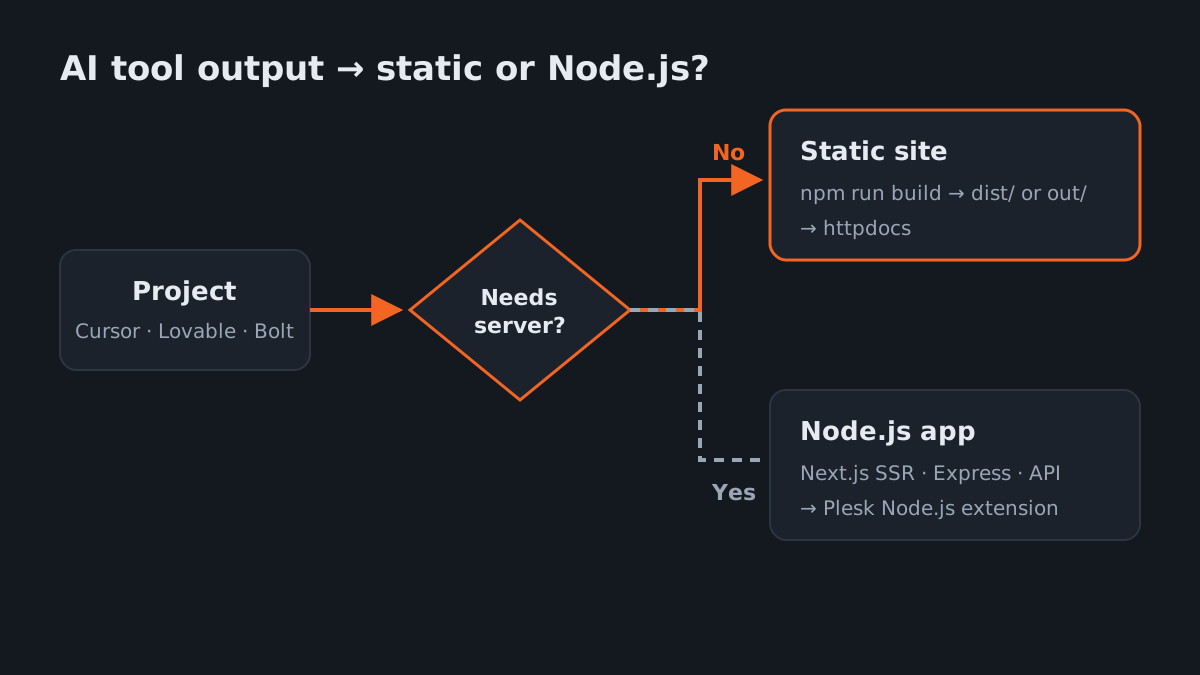
If you are not sure, ask the AI tool that generated the project: "Can this project be built as a static site, and what is the output folder called?"
Prepare the project before uploading
- Make sure the build passes on your own machine first. If it fails locally, it will fail on the server too.
- Check the output folder. Vite and Astro use
dist/; Next.js static export usesout/. Make sure it contains anindex.html. - Never commit secrets. API keys and database passwords belong in a
.envfile, and that file must always be listed in.gitignore. Some AI tools write keys directly into the code, so check every time.
# Install dependencies and build
npm ci
npm run build

# Check the output folder contains index.html
ls dist/        # Vite / Astro
ls out/         # Next.js (output: 'export')

# Check that .env is not tracked by Git
git check-ignore .env && echo "OK: .env is ignored"
For a Next.js static export, configure next.config.js like this (trailingSlash: true is recommended so each page becomes /about/index.html, which any web server can serve directly):
/** @type {import('next').NextConfig} */
const nextConfig = {
  output: 'export',
  trailingSlash: true,
};

module.exports = nextConfig;
Note: a static export cannot use features that need a server, such as Server Actions, Cookies, Rewrites/Redirects in the config, or default Image Optimization. If your project uses them, go to Method 3.
Method 1: Upload a static site with File Manager
Best for small sites that rarely change. No extra setup is needed.
- Zip the files inside the
dist/(orout/) folder. Do not zip the folder itself, or your site will end up under/dist/. - In Plesk, go to Websites & Domains and, on your domain’s Dashboard, click Files (under Files & Databases) to open File Manager.
- Open the
httpdocsfolder (the default document root of the main domain; the path bar shows Home directory › httpdocs), tick the Plesk default page files and click Remove. - Click the blue + button › Upload File and choose your ZIP file, or drag and drop the ZIP onto the file list.
- Click the ZIP file's row › Extract Files. Tick Replace existing files when updating an existing site, then click OK.
# Create a ZIP from the files inside dist (macOS / Linux)
cd dist && zip -r ../site.zip . && cd ..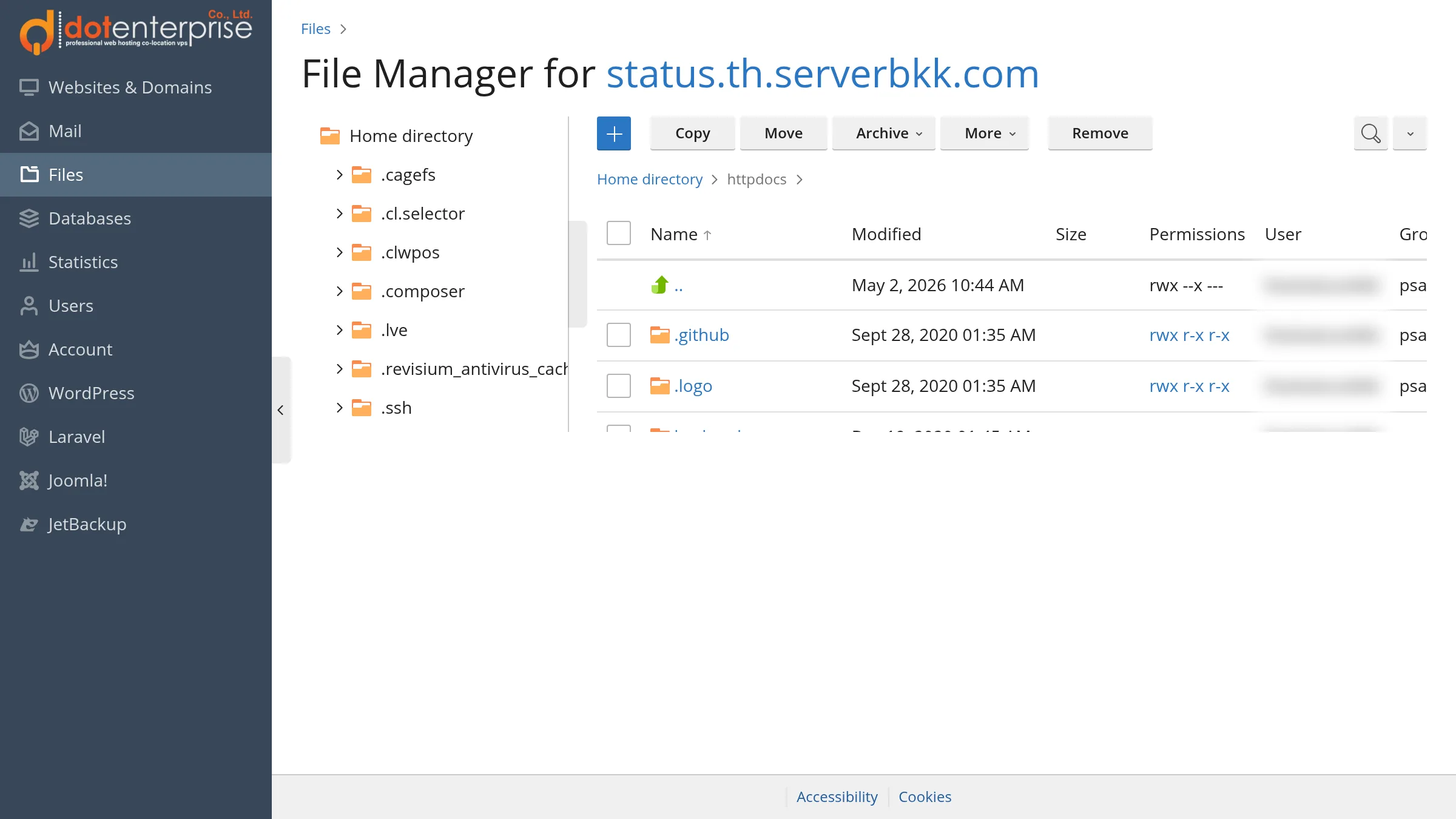
File Manager can extract ZIP, RAR, TAR, TGZ and TAR.GZ archives. If you prefer FTP/SFTP, you can also upload the contents of dist/ into httpdocs.
Method 2 (recommended): Automatic deployment from GitHub with Plesk Git
Almost every AI tool (Lovable, Bolt, Replit, Cursor, Claude Code) can push code to GitHub. Once the repository is connected to Plesk Git, the site updates itself on every push, with no manual uploads. For Git basics in Plesk, see Deploying code from a Git repository in Plesk.
Step 1: Add the repository
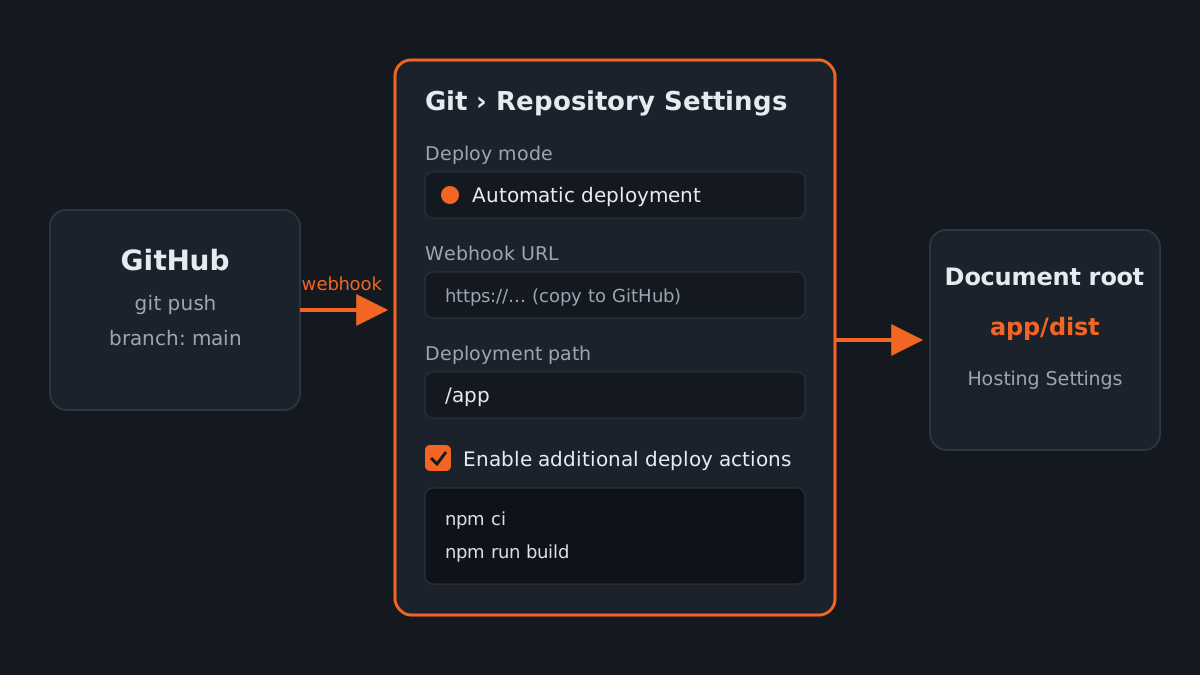
- Go to Websites & Domains › Git › Add Repository and choose Remote Git hosting like GitHub or BitBucket.
- Enter the repository URL. For a private repo, the SSH format is recommended: copy the SSH public key shown by Plesk into GitHub as a deploy key (detailed steps in Auto Deploy on Plesk via GitHub).
- Under Change branch and path, select the branch (such as
main) and set the target to a folder outsidehttpdocs, for example/app.
Why not deploy straight into httpdocs? The repository contains source code, package.json and config files that should not be downloadable by the public. Keep the code outside the public folder and point the document root at the output folder only.
Step 2: Set the deploy mode and webhook
- Open Repository Settings and choose Automatic deployment (the default), or Manual deployment if you prefer to click Deploy yourself.
- Copy the Webhook URL generated by Plesk into GitHub › Settings › Webhooks and set it to trigger on push.
Step 3: Let the server build the site (advanced)
Tick Enable additional deploy actions and enter shell commands (one per line). They run after every deployment:
# Use the full path to the npm bundled with Plesk's Node.js (replace 22 with the installed version)
/opt/plesk/node/22/bin/npm ci > deploy.log 2>&1
/opt/plesk/node/22/bin/npm run build >> deploy.log 2>&1
Caution: deploy actions may run in a chroot environment with a limited set of commands, so you may see npm: command not found even with the full path. If that happens, check deploy.log, contact our support team, or use the alternative below.
The option that always works: build before you push
Let GitHub Actions (or your own machine) build the site and push only the output folder to a separate branch such as deploy, then point Plesk Git at that branch. The server never has to run npm. See an example workflow in Auto Deploy to Plesk with GitHub Actions.
Step 4: Point the document root at the output folder
Open the domain's Hosting Settings, change Document root from httpdocs to the output folder, for example app/dist (app/out for Next.js), and click OK. If you use the deploy branch option, which contains only output files, point it at app.
Method 3: Run it as a Node.js app with Plesk Node.js
Use this for projects that need a server, such as an Express API or Next.js with SSR. The Node.js Toolkit must be installed on the server first (see Running Node.js apps on Plesk with Node.js Toolkit). If you do not see the Node.js menu in your plan, contact our support team.
- Put the code on the server (Plesk Git as in Method 2 is recommended, into a folder such as
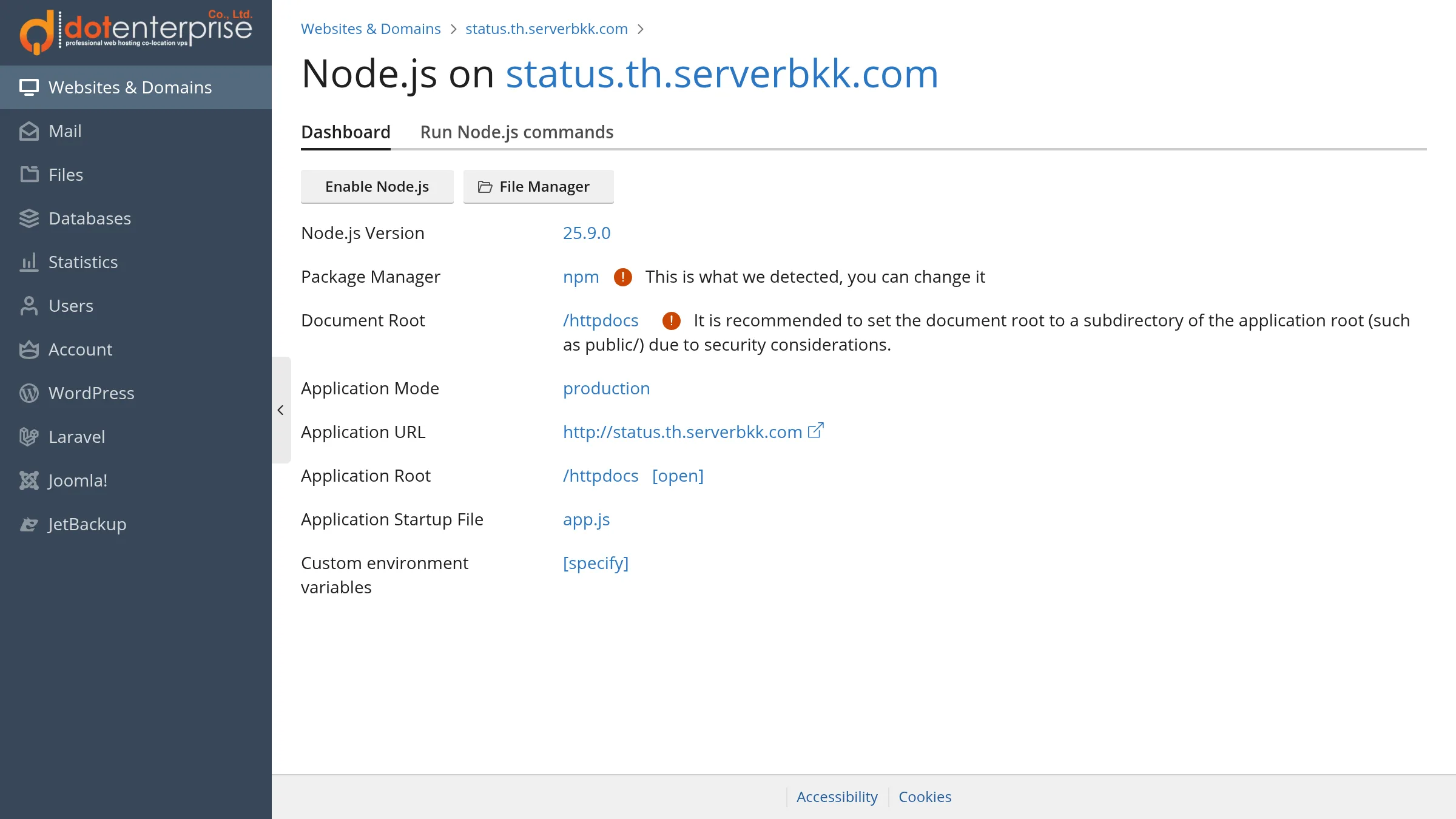
/app). - Go to Websites & Domains › your domain › Node.js. The Node.js on <your domain> page has two tabs, Dashboard and Run Node.js commands. On the Dashboard, set:
- Node.js Version: match the version your project uses (check
enginesinpackage.json). - Package Manager: Plesk detects it (for example npm) and shows “This is what we detected, you can change it”.
- Application Root: the folder that contains
package.json, for example/app. - Document Root: the folder of static files. Plesk warns: “It is recommended to set the document root to a subdirectory of the application root (such as public/) due to security considerations.” For example
/app/public. - Application Mode: choose
production(this setsNODE_ENV). - Application Startup File: the file that starts the app; it must be in the Application Root. The default is
app.js; change it to your file, for exampleserver.js. - Custom environment variables: put the values from
.env, such as API keys, here instead of committing them to Git.
- Node.js Version: match the version your project uses (check
- Click Enable Node.js. The Application URL field shows the address of the app.
- Open the Run Node.js commands tab to install dependencies (for example
npm install) and, if the app needs a build step, run the build (for examplenpm run build). - Click Restart App (available on the Dashboard once Node.js is enabled) whenever you update the code or change environment variables.
Example Express server.js that reads the port from the environment:
const express = require('express');
const app = express();

app.use(express.static('public'));
app.get('/api/health', (req, res) => res.json({ ok: true }));

const port = process.env.PORT || 3000;
app.listen(port, () => console.log(`listening on ${port}`));
For Next.js with SSR you need a server entry file to use as the Application Startup File. Follow the Next.js documentation for your version, or ask the AI tool that built the project to prepare this file, then build it in the Run Node.js commands tab before clicking Restart App.
If Restart App has no effect, create tmp/restart.txt in the Application Root over SSH:
cd /var/www/vhosts/example.com/app
mkdir -p tmp && touch tmp/restart.txt
Enable HTTPS with a free SSL certificate
Once the site is live, install a free Let's Encrypt certificate from the domain's SSL/TLS Certificates menu and turn on the HTTP to HTTPS redirect. See How to install a Let's Encrypt SSL certificate in Plesk for details.
Troubleshooting
| Symptom | Common cause | Fix |
|---|---|---|
| The home page works, but refreshing any other page gives a 404 | A single-page app (React Router) has no real file for each URL | Add the .htaccess below (for Next.js use trailingSlash: true) |
| You still see the Plesk default page, or a 403 | The document root does not point at the folder with index.html | Check Hosting Settings › Document root, and make sure files were not extracted into a nested httpdocs/dist/ |
| Blank page; JS/CSS files fail to load | Wrong Vite base, or the assets folder was not fully uploaded | Use base: '/' when the site is at the domain root, then rebuild |
| Cannot reach the API or database | Environment variables are not set on the server (.env is correctly not committed) | Set them under Custom environment variables and click Restart App. Browser-side values (such as VITE_*) must be present at build time |
| npm install or the build fails | The Node.js Version does not match what the project needs | Choose the version that builds successfully on your machine (node -v) |
| The site does not update after a push | No webhook, or the deploy mode is Manual | Check Repository Settings and Webhooks › Recent Deliveries in GitHub |
Example .htaccess for a single-page app, placed in the document root. It works when nginx Proxy mode is on, which is the Plesk default. Vite copies everything in public/ into dist/, so you can keep this file at public/.htaccess in your project:
<IfModule mod_rewrite.c>
  RewriteEngine On
  RewriteBase /
  RewriteRule ^index\.html$ - [L]
  RewriteCond %{REQUEST_FILENAME} !-f
  RewriteCond %{REQUEST_FILENAME} !-d
  RewriteRule . /index.html [L]
</IfModule>
If the site is served by nginx alone (Proxy mode off), .htaccess has no effect and you need the nginx directive below. Customers usually cannot edit it themselves, so contact our support team to add it:
location / {
    try_files $uri $uri/ /index.html;
}
Summary
- Small static sites: build, then upload the files in
dist/orout/intohttpdocswith File Manager. - Sites you update often: push to GitHub and let Plesk Git deploy automatically, with the document root pointing at the output folder.
- Sites with a backend: run them through Plesk Node.js, with the Application Root, Startup File and environment variables set.
- Whichever method you use, keep secrets out of Git and always enable HTTPS.
Need hosting with Plesk, Git and Node.js to put your vibe-coded site into production? See Dot Enterprise's Secure Cloud Hosting plans.