How to Install a Free Let's Encrypt SSL Certificate in Plesk (Illustrated Guide)
Let’s Encrypt is a free SSL/TLS certificate authority trusted by every major browser, and Plesk can install its certificates in a few clicks and renew them automatically. This step-by-step illustrated guide covers checking DNS before you request a certificate, choosing options that cover www/webmail/mail, forcing HTTPS, and fixing the most common errors.
Why your website needs SSL (HTTPS)
- Encryption: data between the browser and the server (passwords, contact forms, orders) is encrypted, so nobody in the middle can read or alter it (man-in-the-middle attacks).
- Authenticity: the certificate is bound to your domain name, so visitors know they are talking to your server.
- No “Not secure” warning: modern browsers flag every HTTP page, which discourages visitors from entering data.
- Better for SEO: Google uses HTTPS as a ranking signal, and many modern browser features only work over HTTPS.
Let’s Encrypt issues free Domain Validation (DV) certificates. Encryption is as strong as with paid certificates; the difference is that there is no organization validation (OV/EV) and no warranty.
Before you request a certificate
- The domain must already point to the Plesk server — the A record (and www) must be the IP of the server hosting the site, because Let’s Encrypt checks a validation file at
http://your-domain/.well-known/acme-challenge/over port 80. If you have just moved the domain, wait for DNS to propagate. - If you have an AAAA (IPv6) record, it must point to the same server. If the server does not use IPv6, remove the AAAA record, otherwise validation may fail.
- Port 80 must be open and not blocked by a firewall (the HTTP-01 check works on port 80 only).
- Using Cloudflare? Set the SSL/TLS mode to Full (strict). If issuance fails while the proxy is on (orange cloud), temporarily switch the root and www records to DNS only (grey cloud), issue the certificate, then turn the proxy back on.
Check which IP your domain resolves to with these commands (on Windows use nslookup). The result must match the hosting IP shown under Websites & Domains.
dig +short A example.com
dig +short A www.example.com
dig +short AAAA example.com
How to install a Let’s Encrypt certificate in Plesk
In Plesk Obsidian, certificate management is provided by the SSL It! extension, which is installed by default, with the Let’s Encrypt extension working as its plugin (since Plesk Obsidian 18.0.22, Let’s Encrypt certificates can only be issued through SSL It!). The screenshots below are from Dot Enterprise’s own panel running Plesk Obsidian 18.0.80; button names and positions may differ slightly in other Plesk versions and themes, but the order of steps is the same.
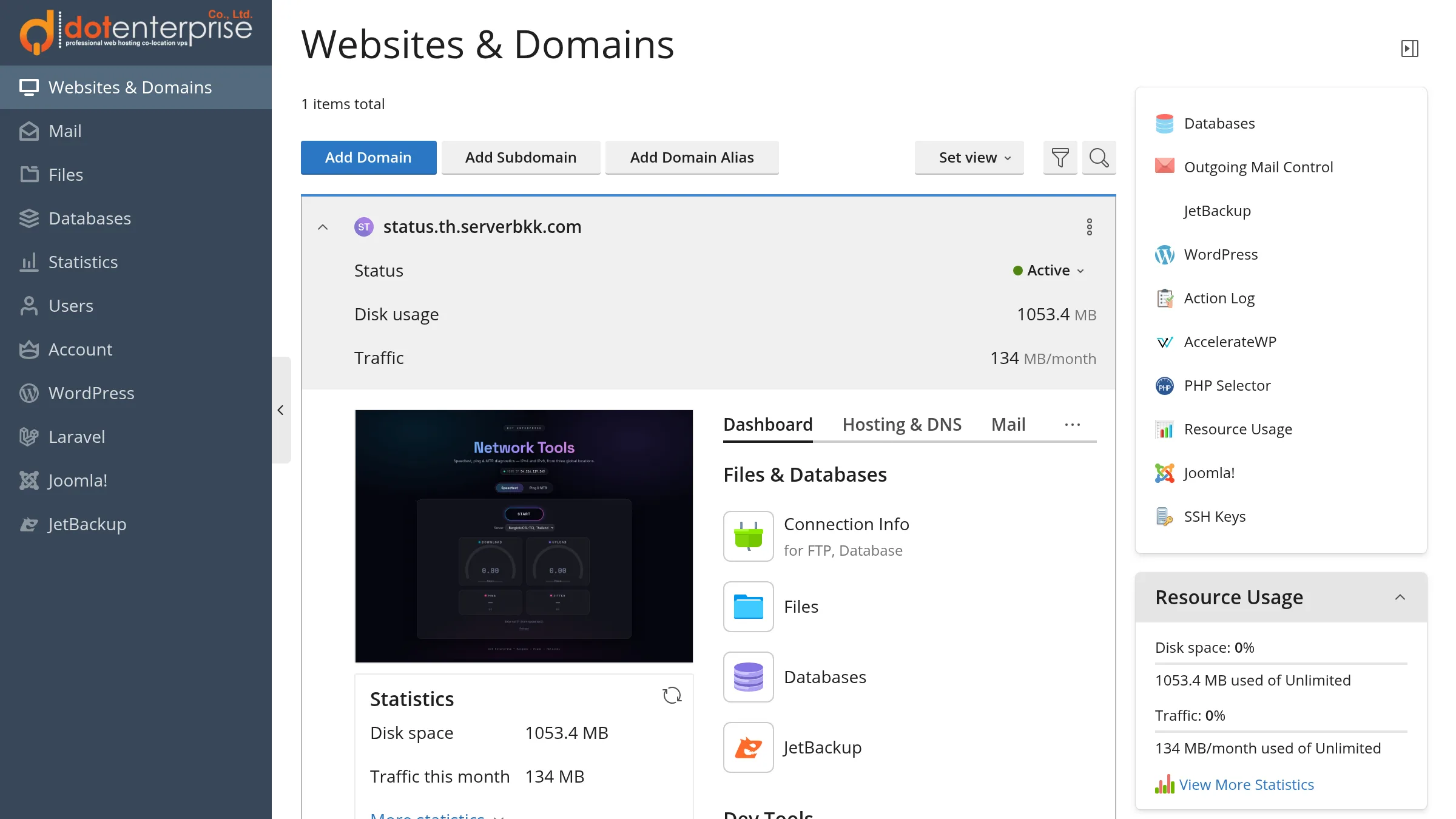
Step 1: Open Websites & Domains
Log in to Plesk and click Websites & Domains in the left menu to see all domains in your account. Click the domain you want to secure to open its Dashboard tab.
Step 2: Open the domain’s SSL/TLS Certificates
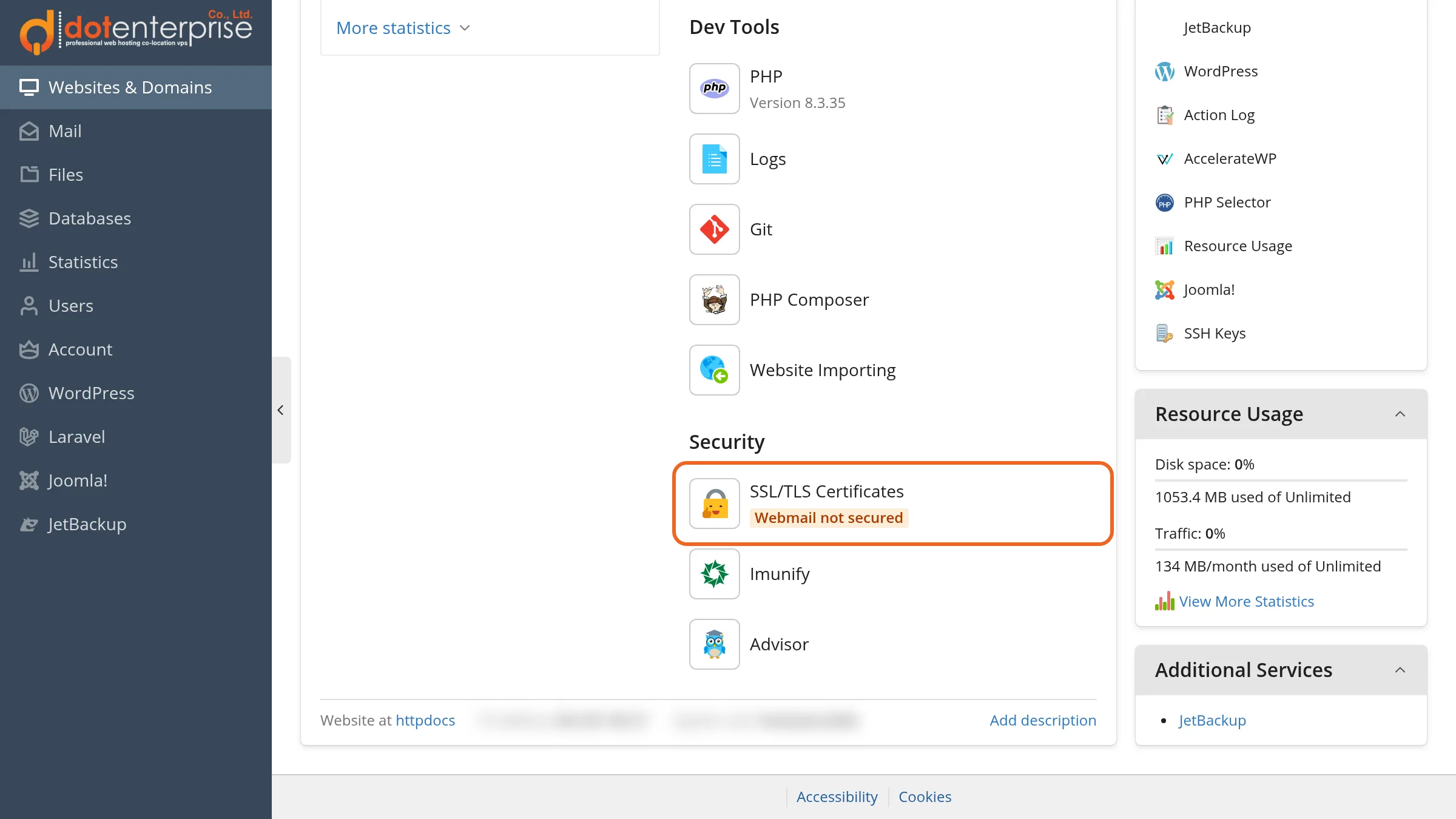
On the domain’s Dashboard, scroll to the Security group and click SSL/TLS Certificates. A badge under it shows the current status, for example “Webmail not secured” when part of the domain is not covered yet.
Step 3: Choose the free Let’s Encrypt certificate
- The domain has no certificate yet: the SSL/TLS Certificates page offers to install a certificate directly — click Install on the free Let’s Encrypt option.
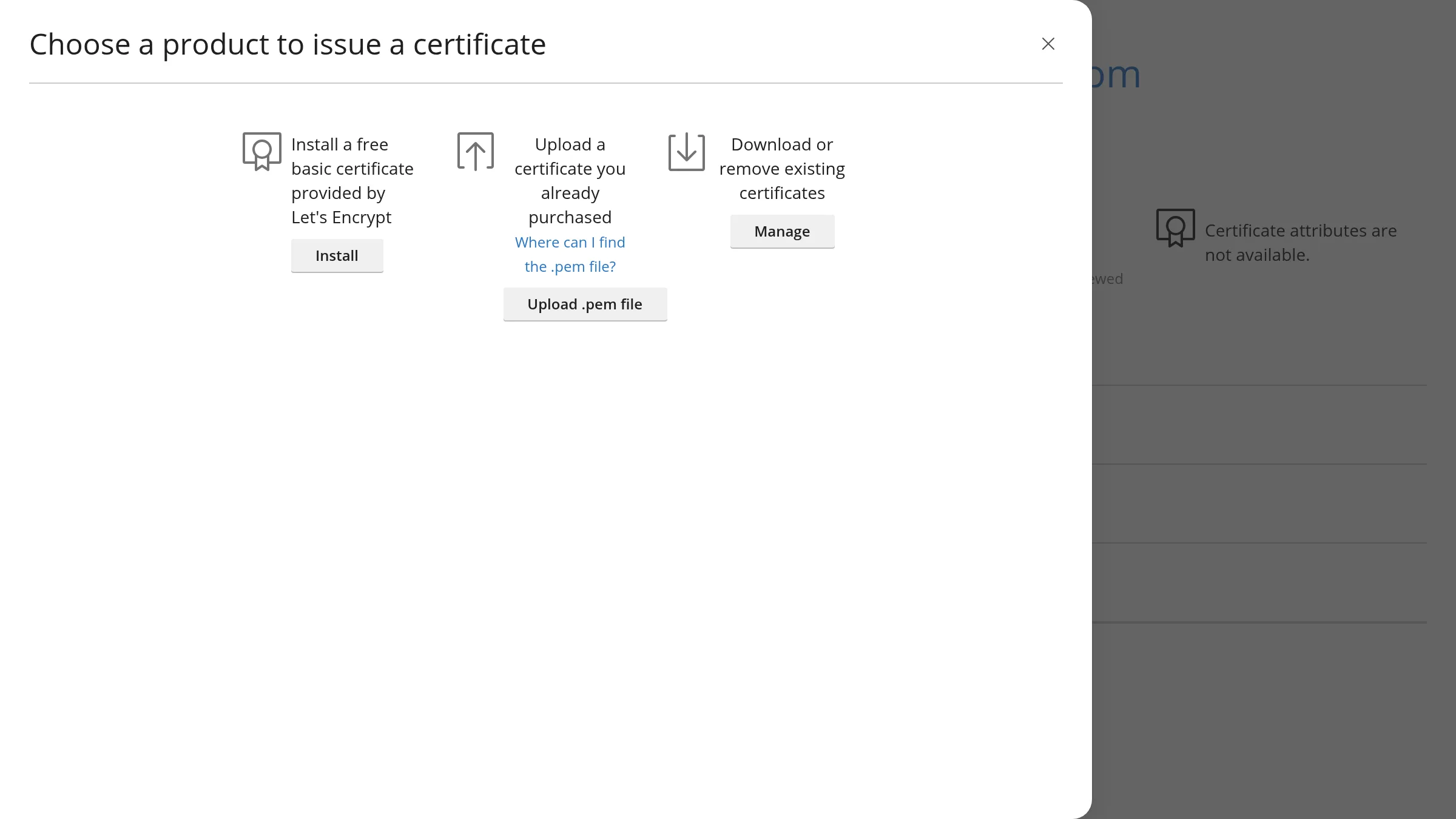
- The domain already has a certificate (for example, you want to add www or webmail): click Reissue Certificate. A panel titled “Choose a product to issue a certificate” opens; click Install under “Install a free basic certificate provided by Let's Encrypt”.
The same panel also offers “Upload a certificate you already purchased” (Upload .pem file) and “Download or remove existing certificates” (Manage).
Step 4: Choose what to secure and click Get it free
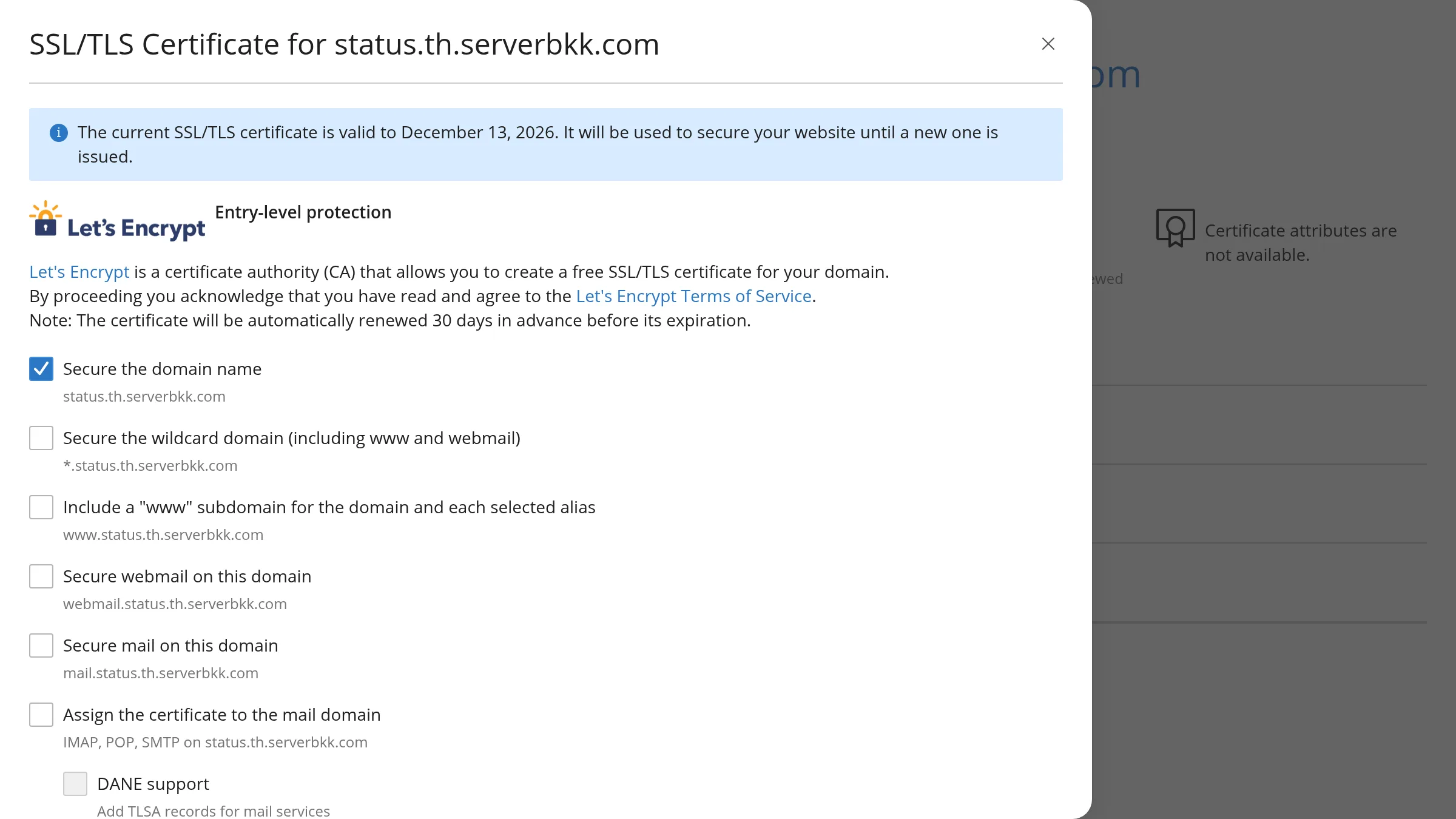
The Let’s Encrypt form notes that “The certificate will be automatically renewed 30 days in advance before its expiration.” Tick the options described in the next section (usually the domain name, www, webmail and mail). Below the checkboxes, under Domain validation method, keep HTTP — a file on the website (http-01) unless you are requesting a wildcard, which requires DNS — a TXT record in the DNS zone (dns-01). Then click Get it free. Plesk requests the certificate, validates the domain and installs it automatically — usually in under a minute.
The form in the Dot Enterprise panel has no email field; some other Plesk setups may ask for an email address for certificate notifications.
The Let’s Encrypt form options explained
| Option (as labelled in Plesk) | What it does | Should you select it? |
|---|---|---|
| Secure the domain name | Secures the domain itself, e.g. example.com | Always |
| Secure the wildcard domain (including www and webmail) | Issues a *.example.com certificate covering all first-level subdomains | Only when needed — see the conditions below |
| Include a "www" subdomain for the domain and each selected alias | Adds www.example.com (and www of selected aliases) to the certificate | Yes — many visitors type www |
| Secure webmail on this domain | Secures webmail.example.com, used to read email in a browser | Yes, if you use email on this hosting |
| Secure mail on this domain | Adds mail.example.com to the certificate | Yes, if you use email on this hosting |
| Assign the certificate to the mail domain | Uses this certificate for the domain’s mail services (IMAP, POP, SMTP) so mail clients do not warn about a name mismatch | Yes, if you use email on this hosting |
| DANE support (sub-option of the above) | Adds TLSA records for mail services | Optional — leave it unticked unless you know you need DANE |
Wildcard conditions: wildcard certificates must be validated via DNS (choose DNS — a TXT record in the DNS zone (dns-01): a TXT record named _acme-challenge) because HTTP validation cannot be used for wildcards. Plesk automates this only when the domain uses Plesk’s DNS (or a third-party DNS synced with Plesk). If DNS is hosted elsewhere, such as Cloudflare, you must add the TXT record yourself on every renewal, so it is not recommended. With only a few subdomains, separate certificates per subdomain are simpler. A wildcard covers one level only (a.example.com, but not a.b.example.com).
Keep websites secured: when this option on the SSL/TLS Certificates page is on and you later add a subdomain, alias or webmail, SSL It! reissues the Let’s Encrypt certificate to cover it. It is shown as Disabled until you turn it on.
Force HTTPS and enable HSTS
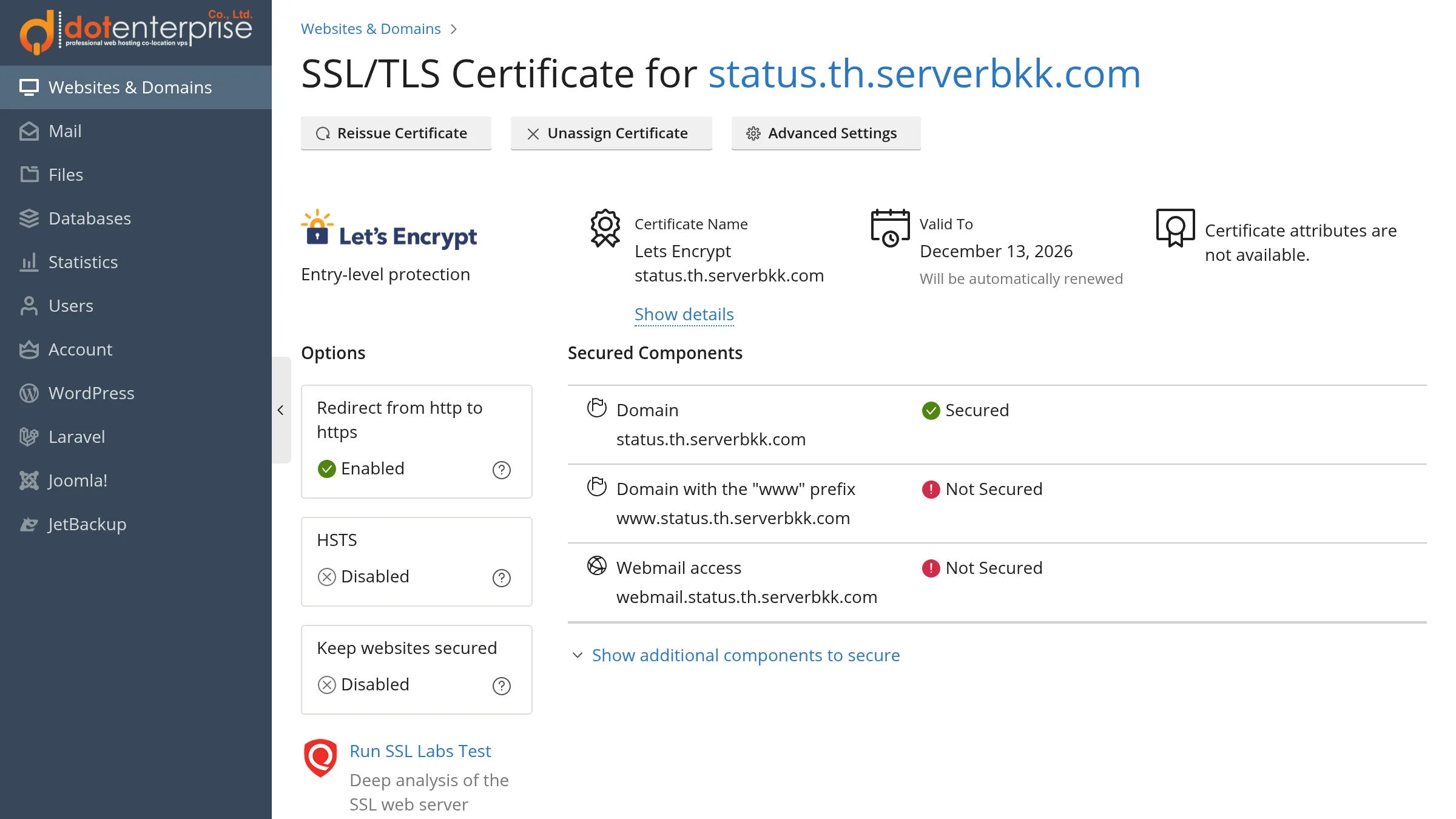
After installation, the SSL/TLS Certificate for <your domain> page shows the Let’s Encrypt certificate (“Entry-level protection”), its Valid To date with “Will be automatically renewed”, the Reissue Certificate, Unassign Certificate and Advanced Settings buttons, and the Options cards. With the certificate installed, visitors who type http:// can still use the unencrypted site unless the redirect is on — but first make sure the site works over https://.
- Redirect from http to https: sends visitors from HTTP to HTTPS with a permanent (301) redirect, which is also good for SEO. On clean Plesk installations this is enabled by default (the card shows Enabled).
- HSTS: tells browsers to always use HTTPS for the domain for the Max-age period. It is more secure, but if the certificate breaks during that period visitors cannot reach the site at all. It is Disabled by default; when you turn it on, clear Include subdomains / Include webmail if those are not secured yet.
- Keep websites secured: automatically keeps new subdomains, aliases and webmail covered (see above).
If the site is behind Cloudflare and shows ERR_TOO_MANY_REDIRECTS after enabling the redirect, Cloudflare is usually set to Flexible — change it to Full (strict).
Verify that SSL works
- On the certificate page, check Secured Components: Domain, Domain with the "www" prefix and Webmail access should all show Secured. If one shows Not Secured, click Reissue Certificate and tick the missing option (more names are under Show additional components to secure).
- Open
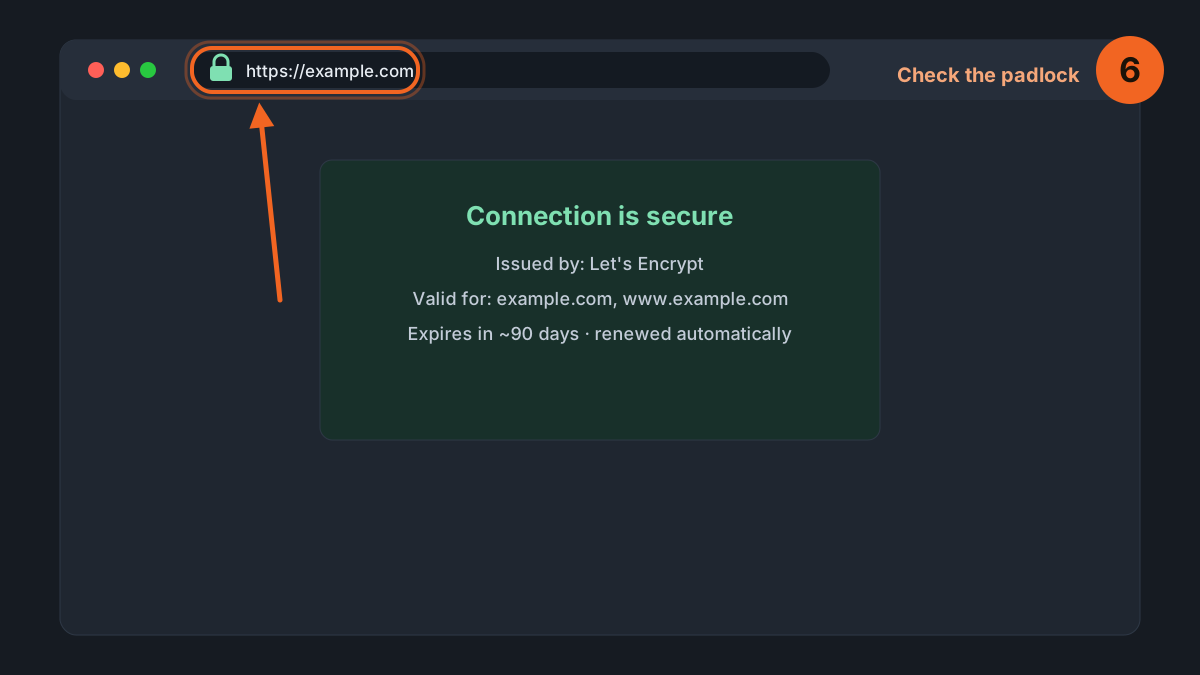
https://example.comin a browser. You should see the padlock / secure-connection icon and no warnings; click it to confirm the certificate is issued by Let’s Encrypt and see its expiry date. - Open
http://example.com— it should redirect to https:// automatically. - Click Run SSL Labs Test on the certificate page (or use the SSL Labs Server Test directly) to confirm the chain is complete and all names are covered.
Or check from the command line that HTTP redirects and HTTPS responds:
curl -sI http://example.com | head -n 3
curl -sI https://example.com | head -n 1
If pages still load images or scripts over http:// (mixed content), the padlock may not show fully; update those links to https://. For WordPress, see Set up Let’s Encrypt SSL for WordPress in Plesk.
Certificate renewal
- Let’s Encrypt certificates are currently valid for 90 days, and SSL It! renews them automatically 30 days before expiry (as stated on the form and shown as “Will be automatically renewed” on the certificate page) — no action needed.
- Let’s Encrypt has announced shorter lifetimes: 64 days (scheduled for 10 Feb 2027) and 45 days (scheduled for 16 Feb 2028). With automatic renewal this does not affect Plesk users.
- Renewal uses the same validation as the first request. If you later move DNS, turn on the Cloudflare proxy or change IP and validation fails, renewal fails too. Check the Valid To date and Secured Components on the SSL/TLS Certificates page from time to time.
Common problems and fixes
| Symptom / error message | Common cause | Fix |
|---|---|---|
| Invalid response / 403 / 404 during the challenge | A record points to another server, or content is loaded from elsewhere | Point the A record (and www) to the Plesk server IP, wait for DNS, then retry |
| Timeout during connect (likely firewall problem) | Port 80 closed or blocked by a firewall | Open inbound port 80 (HTTP-01 uses port 80 only) |
| DNS zone contains an AAAA record, but the domain is not assigned an IPv6 address | AAAA record points elsewhere or to an IPv6 the server does not use | Remove or correct the AAAA record; click “details” in the error to see the actual Let’s Encrypt reason |
| Issuance fails with Cloudflare | Proxy on (orange cloud), Flexible mode, or cache/WAF/captcha blocking the challenge path | Use Full (strict), switch to DNS only temporarily, exclude /.well-known/acme-challenge/ from cache and security rules |
| CAA record prevents issuance | The domain has a CAA record that does not allow Let’s Encrypt | Add a CAA record 0 issue "letsencrypt.org" or remove unused CAA records |
| too many certificates / too many failed authorizations | Let’s Encrypt rate limits: 5 certificates per identical set of names per 7 days, 5 failed validations per name per hour, 50 certificates per registered domain per 7 days | Stop retrying, fix the cause first, then wait for the quota to refill (one failure slot every ~12 minutes) |
| No Let’s Encrypt option / cannot request a certificate | SSL/TLS support is disabled in the domain’s Hosting Settings, or SSL It! is not installed | Enable SSL/TLS support in Hosting Settings or contact your server administrator |
| Wildcard issuance fails | The domain’s DNS is not hosted in Plesk | Move DNS to Plesk, or select www/subdomains individually instead |
Example CAA record allowing Let’s Encrypt to issue certificates (add it under DNS Settings):
example.com. CAA 0 issue "letsencrypt.org"FAQ
How is Let’s Encrypt different from a paid SSL certificate?
Encryption is the same. Let’s Encrypt issues DV certificates only (proof that you control the domain), while paid certificates offer OV/EV organization validation and a warranty. To install a certificate you bought, see How to install a custom SSL certificate in Plesk.
Can I use it for subdomains?
Yes. Open SSL/TLS Certificates for that subdomain and follow the same steps, or use a wildcard if DNS is hosted in Plesk.
What about the Plesk login page (port 8443)?
That is a server-level setting; see Managing server-level SSL/TLS certificates in Plesk.
Summary
Installing Let’s Encrypt in Plesk takes four steps: Websites & Domains → SSL/TLS Certificates → Install → choose options and click Get it free. The key points: make sure DNS points to the server first (watch out for the Cloudflare proxy), include www/webmail/mail, enable Redirect from http to https, and let Plesk renew automatically.
Looking for hosting with Plesk and free SSL ready to go? See Dot Enterprise’s Secure Cloud Hosting plans — and if you get stuck, our team can set it up for you.